 Paneshot
Capture WorkflowsPro
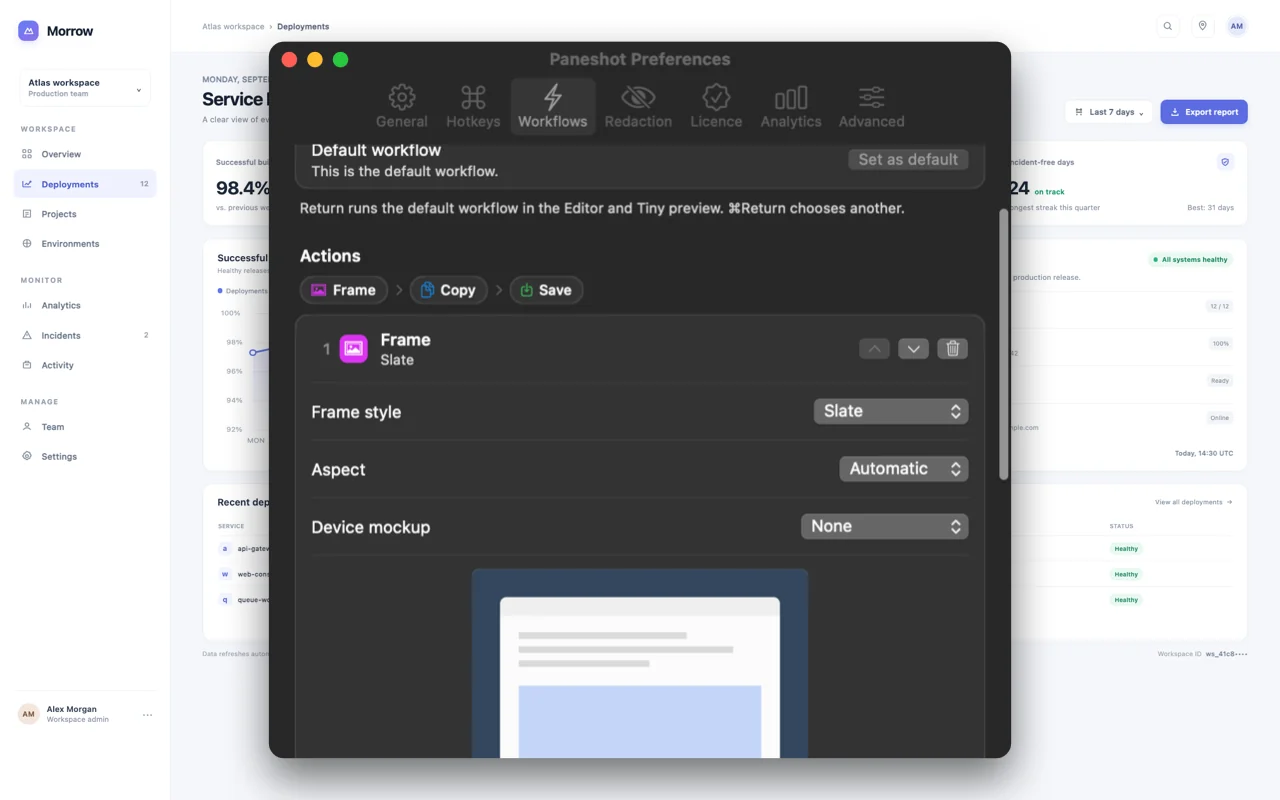
Chain actions such as frame, copy, save and send to an app or coding agent. Press Return in the Tiny preview or Editor to run it.
Included in Pro. See Free and Pro
How to use it
- Open Preferences, choose Workflows and add actions in order, for example Frame, Copy to the clipboard, Save to a folder and Send to. Make more than one workflow if you like, and choose Set as default for the one you use most.
- Capture as usual. The capture is copied and shown in the Tiny preview or Editor; nothing else runs by itself.
- Press Return to run the default workflow, or Command-Return to choose another from the list. In the Editor it runs on your edited image.
Where to find it
Preferences, then Workflows.
Good to know
- Existing files are never replaced.
- Saving is optional. A workflow can copy and send without writing a file.
- Send to the app in front needs a Copy above it. Send to needs the Accessibility permission.
Related tools
- Automatic copyOrdinary captures are on your clipboard the moment you take them. Edits, boards and imported images wait until you choose Copy, Save or drag.
- Pin to ScreenProKeep a screenshot floating above your windows while you work.
- Coding agentsProNewSend a capture to Claude Code, Codex or any open app from one list. Or let an agent capture and read windows itself.
- Shortcuts ActionsProTake, read, redact and save captures from the Shortcuts app, Spotlight and your own automations.