 Paneshot
Magnify
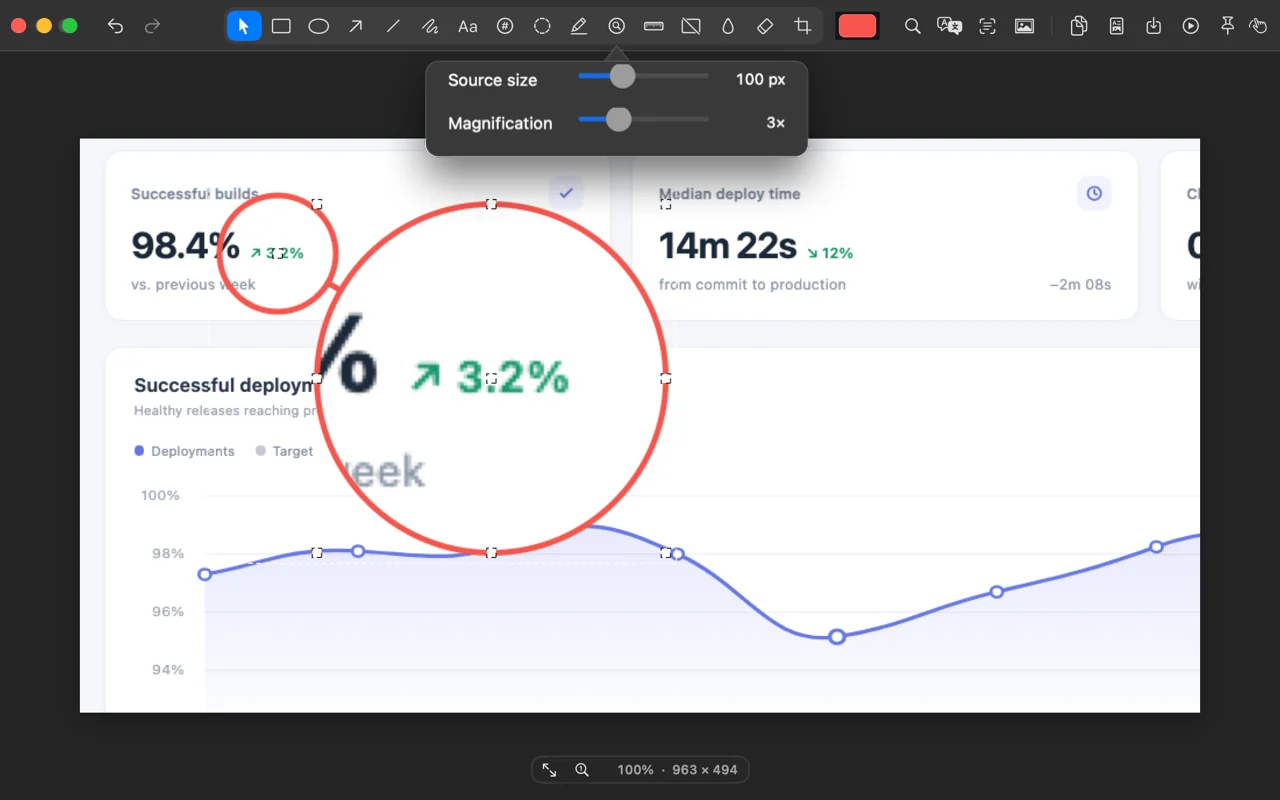
Click a detail and a lens enlarges it, right on the screenshot.
Included in Free. See Free and Pro
How to use it
- Choose Magnify in the Editor.
- Click the detail you want to enlarge. Its settings change the zoom and the size of the area it shows.
- Move the magnifier where it reads best, then copy or save the image.
Where to find it
Magnify in the Editor’s toolbar.
Good to know
- Free includes 10 magnifiers a month. Pro has no limit.
Related tools
- Arrows, text and shapesDraw arrows, lines, boxes, circles or freehand. Add text, crop, and undo any step.
- RulerMeasure the distance between colour changes under your cursor. Hold V for vertical or H for horizontal, then click to place it.
- Step NumbersProClick to add a numbered badge. Each new one takes the next number.
- SpotlightProDrag a rectangle and dim everything outside it.
- Find and HighlightProSearch the text in a screenshot and highlight every match at once. Or click one line to highlight only that.