 Paneshot
Find and HighlightPro
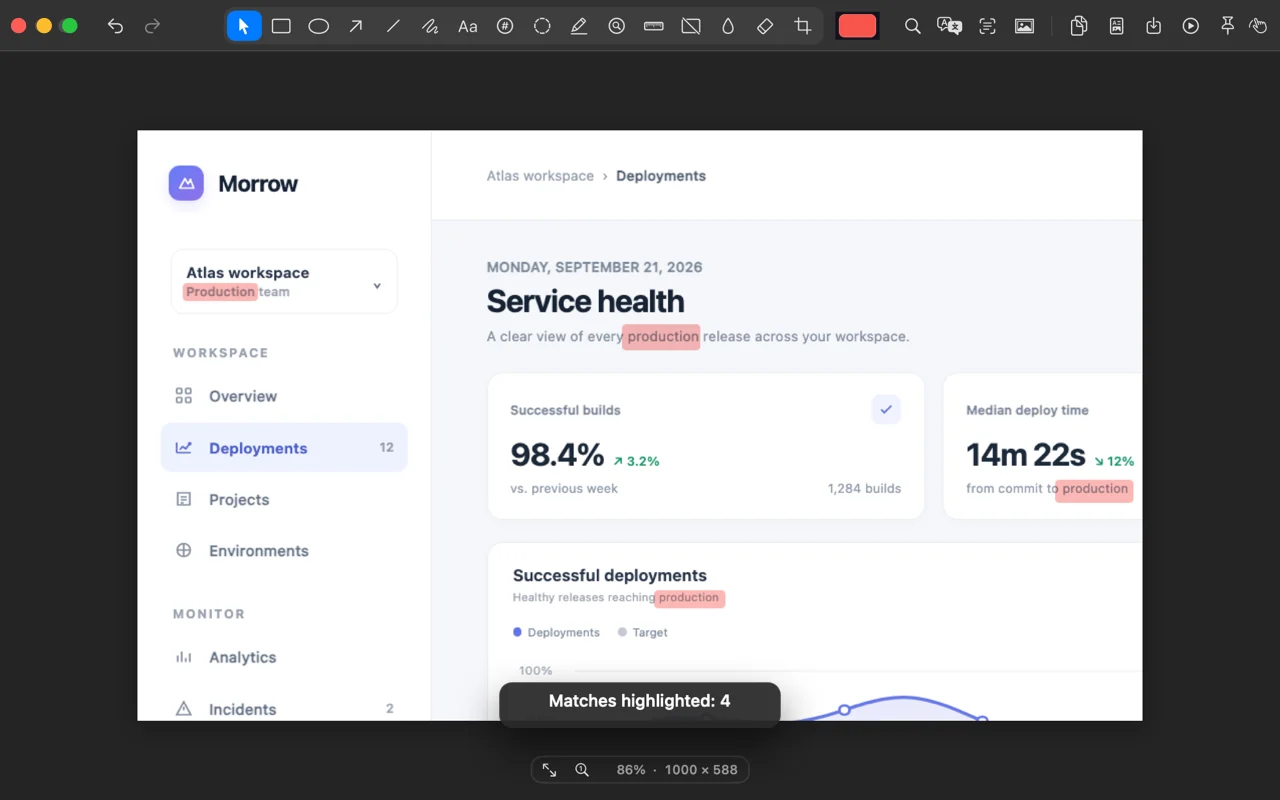
Search the text in a screenshot and highlight every match at once. Or click one line to highlight only that.
Included in Pro. See Free and Pro
How to use it
- Press Command-F in the Editor and type a word or phrase.
- Every match is outlined. Mark them all with Highlight, Spotlight or Redact in one step.
- To mark one place, choose Highlight and click a line of text or drag across words.
Where to find it
The Highlight tool and the Find and Highlight button in the Editor’s toolbar, or Command-F.
Good to know
- The text is read on your Mac and kept only in memory for that image.
- Search ignores case and accents.
Related tools
- Arrows, text and shapesDraw arrows, lines, boxes, circles or freehand. Add text, crop, and undo any step.
- MagnifyClick a detail and a lens enlarges it, right on the screenshot.
- RulerMeasure the distance between colour changes under your cursor. Hold V for vertical or H for horizontal, then click to place it.
- Step NumbersProClick to add a numbered badge. Each new one takes the next number.
- SpotlightProDrag a rectangle and dim everything outside it.