 Paneshot
Smart ErasePro
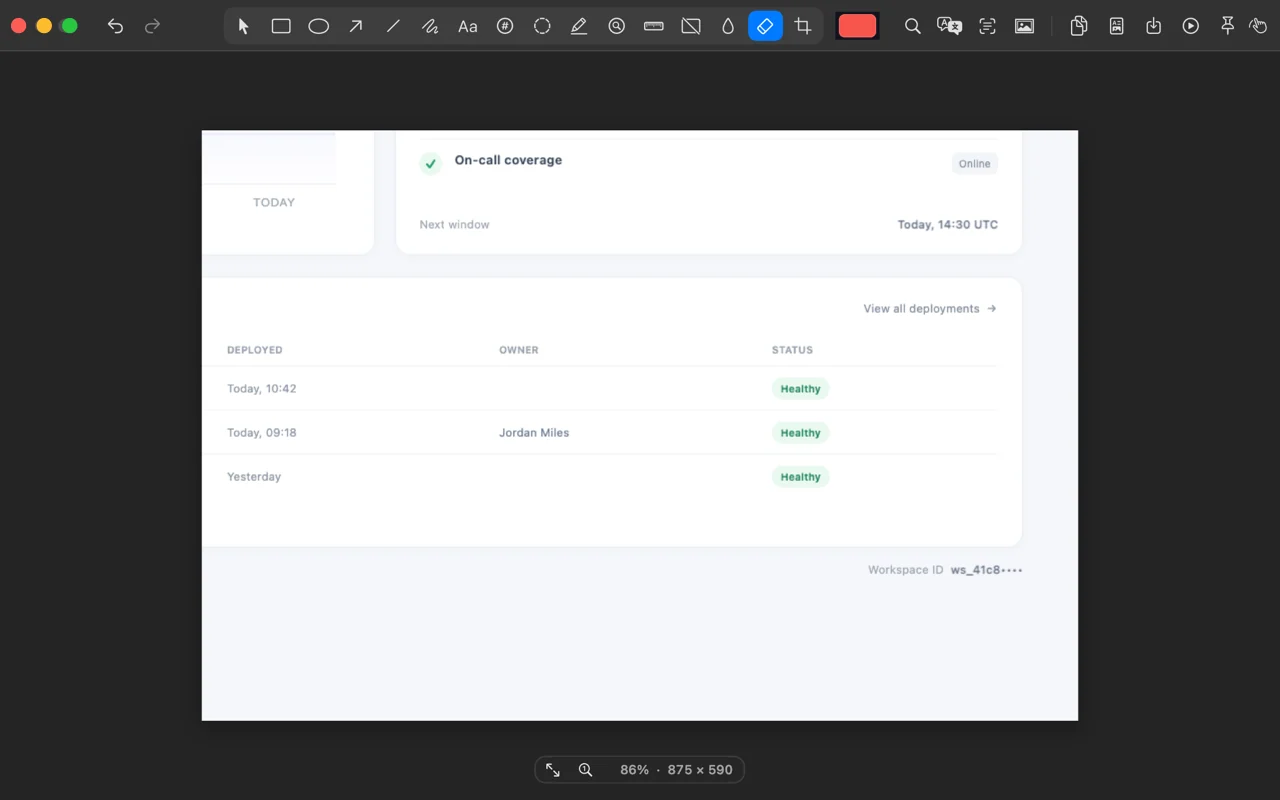
Drag over a name, label or notification and it is gone. The background fills the gap. No black box, no blur.
Included in Pro. See Free and Pro
How to use it
- Choose Erase in the Editor.
- Drag over a name, label or notification. Paneshot fills the area from the background around it. To erase a line of text, click it.
- To erase every match of a word, press Command-F, type the word and choose Erase all matches.
Where to find it
Erase in the Editor toolbar, or Command-F for every match of a word.
Good to know
- It works best on plain backgrounds or soft gradients. On a busy photo the fill can look smudged.
- Paneshot builds the fill only from the pixels around the area, so the erased content is not in the exported image.
- You can move, resize or undo an erase until you copy or save the image.
Related tools
- Blur and redactHide emails, names and numbers before you share.
- Private HandoffPaneshot suggests what to hide. You approve each redaction before anything is copied. Detection is not exhaustive.
- Auto RedactProBlack out personal details, keys and tokens in every capture before it reaches the clipboard. Faces too, if you turn that on.