 Paneshot
Auto RedactPro
Black out personal details, keys and tokens in every capture before it reaches the clipboard. Faces too, if you turn that on.
Included in Pro. See Free and Pro
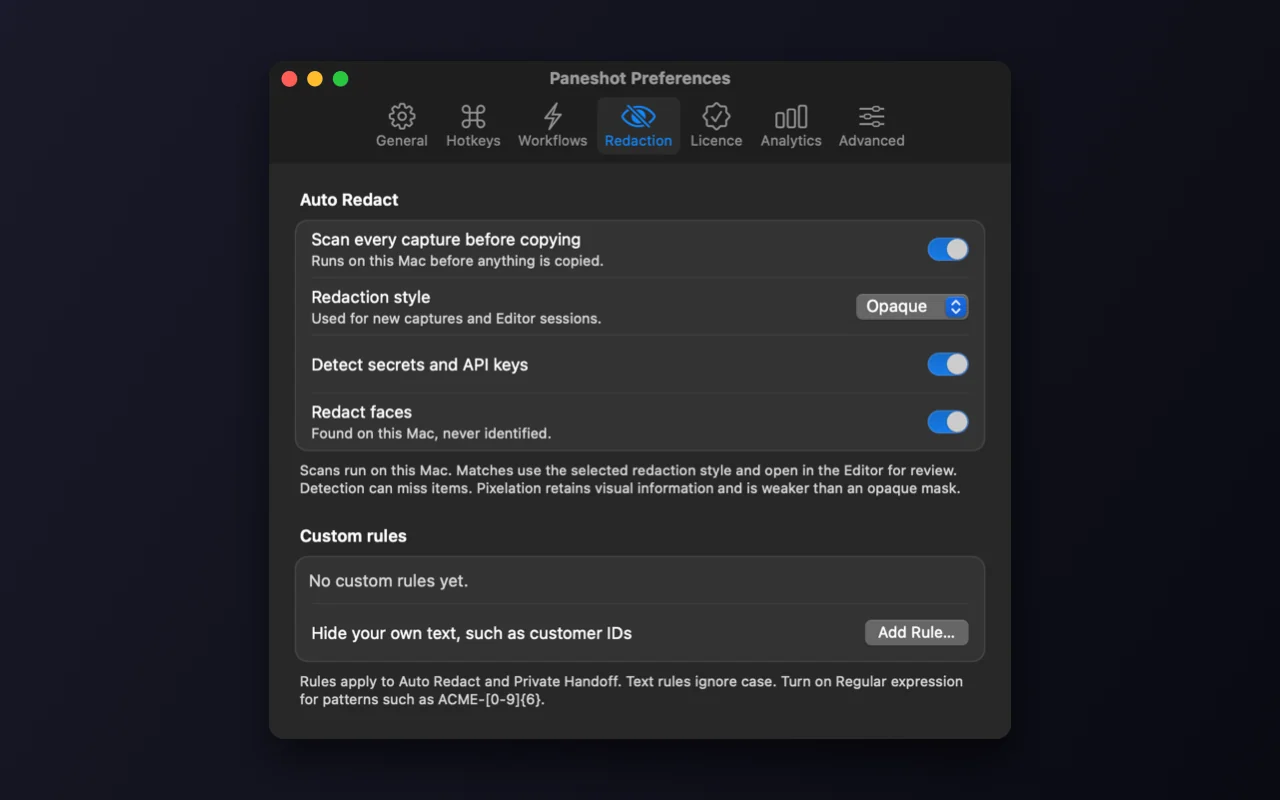
How to use it
- Open Preferences, choose Redaction and turn on Auto Redact.
- It always looks for personal details. Choose whether it also looks for secrets and keys and for faces, and add your own rules.
- Capture as usual. When something is found, the copied image is already redacted, and the Editor shows each box so you can remove it.
Where to find it
Preferences, then Redaction.
Good to know
- Scans run on your Mac. Detection is not exhaustive, so check images before you share them.
- Redact faces is off by default. Paneshot only finds faces; it never identifies anyone.
Related tools
- Blur and redactHide emails, names and numbers before you share.
- Smart EraseProNewDrag over a name, label or notification and it is gone. The background fills the gap. No black box, no blur.
- Private HandoffPaneshot suggests what to hide. You approve each redaction before anything is copied. Detection is not exhaustive.