 Paneshot
Screen RecordingPro
Record an area or one window. Trim the clip, then copy it or save it as an MP4 or a GIF.
Included in Pro. See Free and Pro
How to use it
- Choose Record Screen or press Option-Command-6. Drag over an area, or click a window to record it.
- When you are done, click the stop button in the menu bar. It shows the time so far. The shortcut or Stop Recording stops it too.
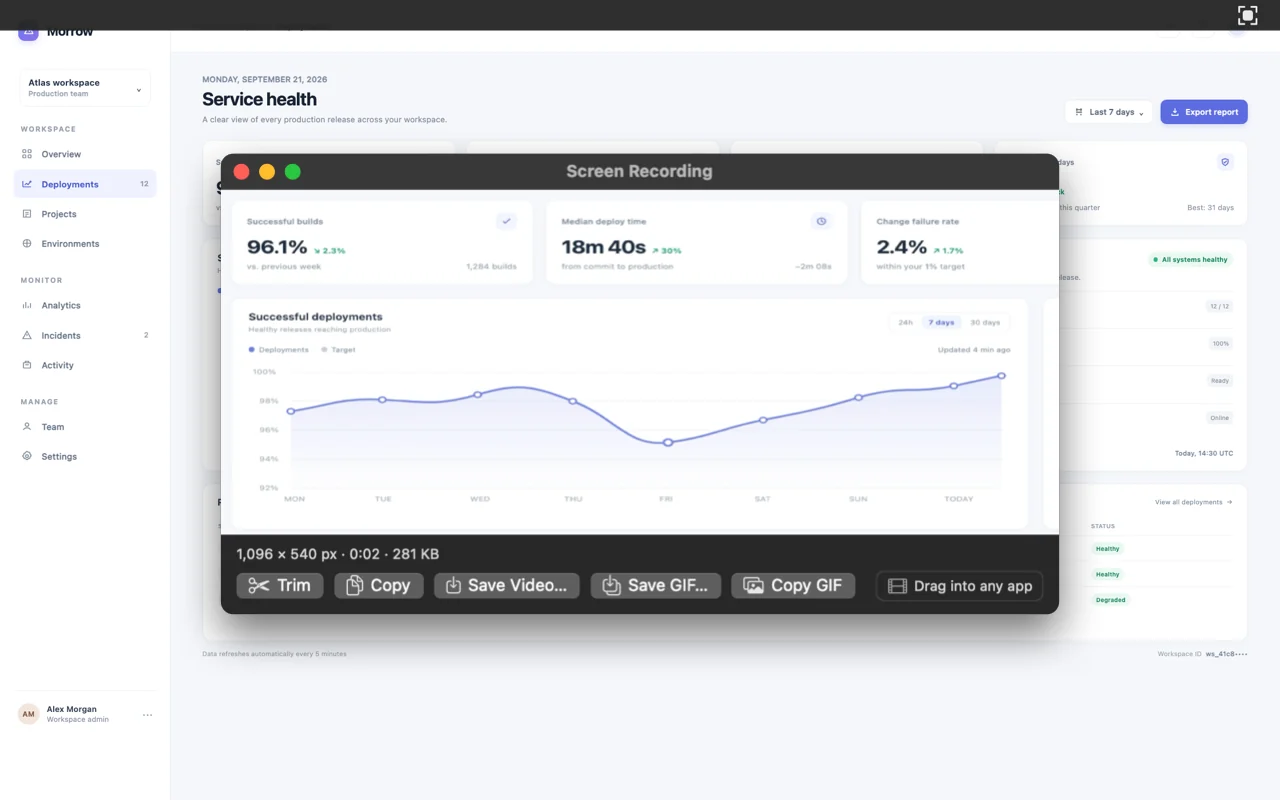
- The Recording window opens with your video. Trim it, then choose Copy, Save Video…, Save GIF… or Copy GIF. You can also drag the video into another app.
Where to find it
Record Screen in the menu bar menu, or Option-Command-6.
Good to know
- There is no audio.
- On macOS 15 or later the video shows your clicks.
- Paneshot windows never appear in a recording.
- Copy puts the video file on the clipboard, so chat apps attach it. Recordings stay on your Mac.
- Save GIF… and Copy GIF refuse a recording longer than 60 seconds, so trim it first.